Connectivity and multi-user access
Atola TaskForce 2 has three connectivity options:
- 10Gb Ethernet network
- Kiosk mode
- Wi-Fi access point (optional)
10Gb Ethernet network
TaskForce is equipped with two built-in 10Gb Ethernet ports. Optionally, a 25G Fiber Extension adds two 25GbE SFP28 ports via the Extension port. Whenever the system is connected to a local network via one of its Ethernet ports, an IP address will be displayed on the IP screen on the system's front panel.
Supported network features:
- Two built-in 10Gb Ethernet ports; optional 25G Fiber Extension (two 25GbE SFP28 ports)
- Dynamic (DHCP) IP / Static IP address
- Settings: DNS nameserver, Default gateway, Jumbo frames
- Secure connection with password-protected network folders
- Support of HTTPS with external organizational and self-signed certificates
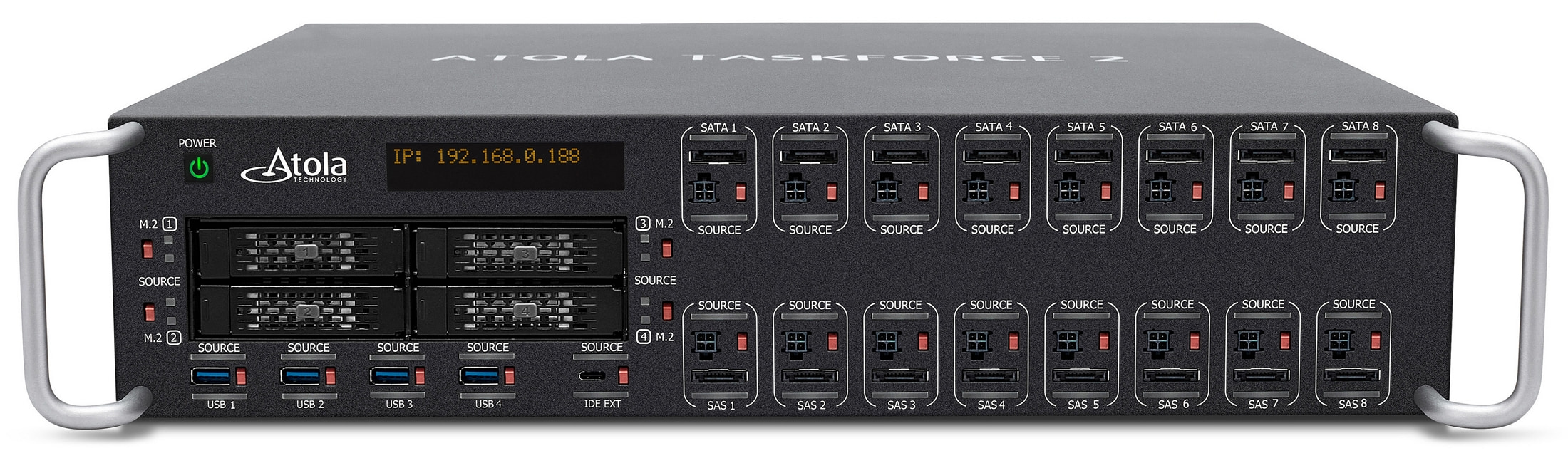
TaskForce 2 shows an IP address required to connect to its user interface
If the system is connected via both Ethernet ports, two IP addresses will be displayed on the screen. These IP addresses are assigned to TaskForce by your DHCP server.
Multi-user access
With the help of these IP addresses, TaskForce can be operated by multiple users simultaneously from their workstations or mobile devices:
- enter either of the IP addresses as shown on the IP screen in the Chrome browser on another device within the same local network.
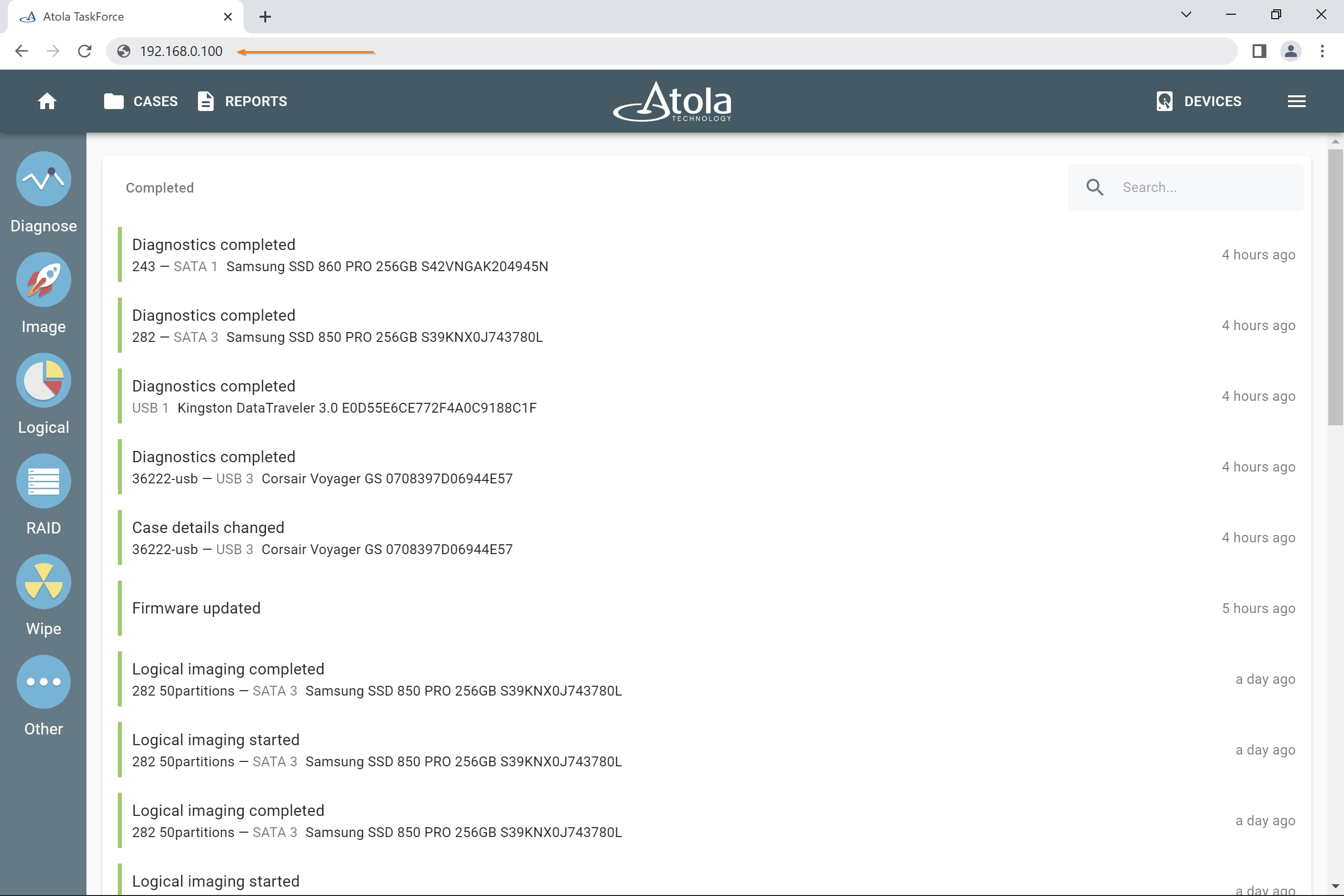
Enter IP address in Chrome browser
Through the Chrome browser one can remotely track and manage tasks, power devices on and off, open, edit and print cases, etc.
Types of devices that can be used to access TaskForce simultaneously include:
- Desktop PC
- Laptop
- Tablet
- Smartphone
TaskForce software can be opened in the Chrome browser within any OS.
This functionality enables a group of users to work on different assignments using the same tool. This helps utilize TaskForce’s multitasking capabilities to the maximum and track operation progress remotely. The number of users accessing TaskForce simultaneously is unlimited.
Kiosk mode
Use TaskForce without any network connection in the Kiosk mode by plugging a VGA monitor, keyboard, and mouse into respective ports on the back side of the TaskForce hardware unit.
Whenever the system is not connected to a network via its built-in 10Gb Ethernet ports (or via an installed 25G Fiber Extension), the Kiosk mode status is displayed on the IP screen.
Once a monitor is plugged in, it displays the TaskForce user interface, and you can operate the system using a keyboard and mouse.
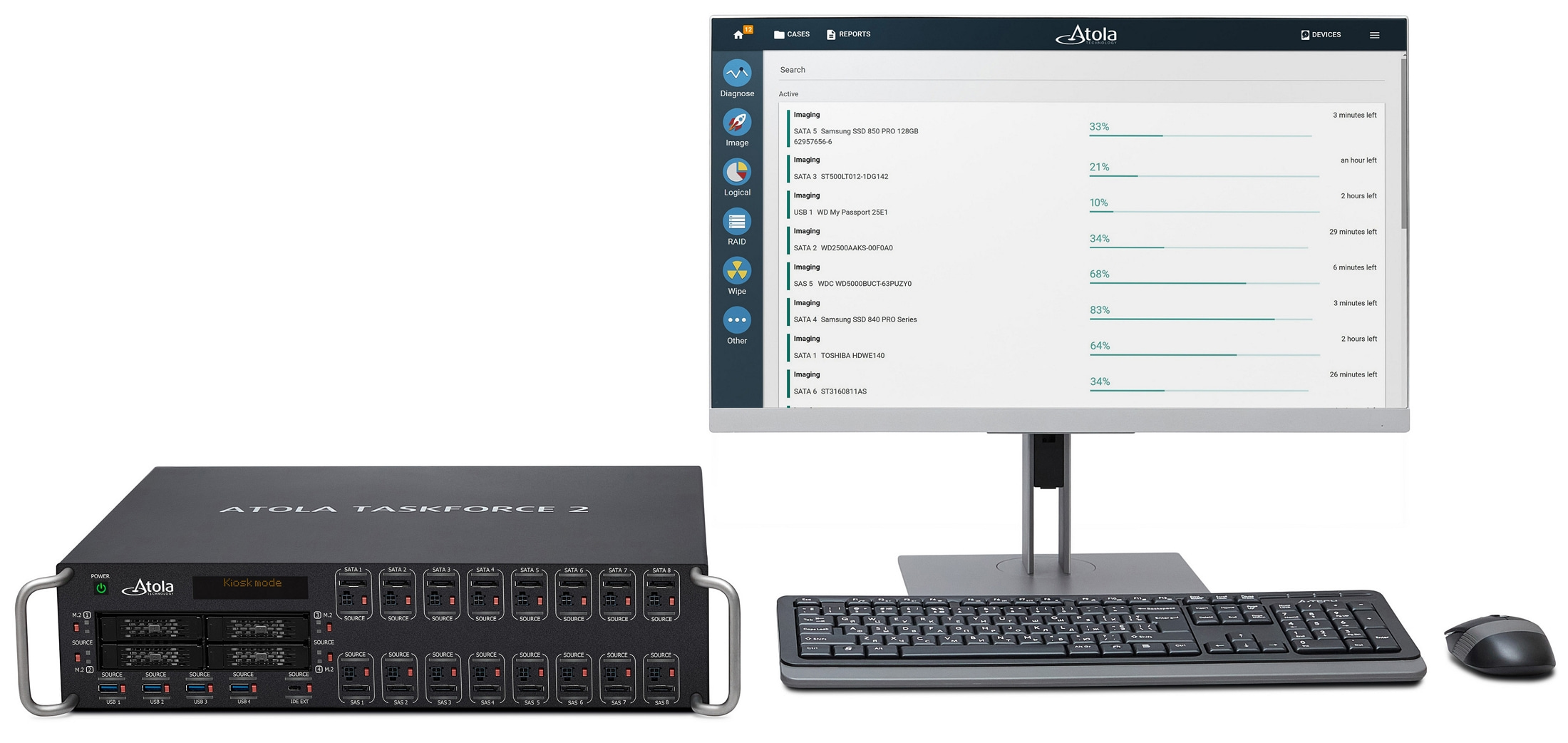
TaskForce 2 in the Kiosk mode.
Wi-Fi access point
The third way to access TaskForce's user interface is via a Wi-Fi 802.11n 150 Mb/s adapter (included in the package). Once the Wi-Fi access point is established, TaskForce can be operated by multiple users simultaneously from their devices connected to the hotspot.
To enable the adapter, follow these steps:
- Plug the adapter into one of TaskForce's USB ports.
- Go to Menu in the top right corner of the TaskForce web page.
- Click Settings.
- Enable Wi-Fi Hotspot. An IP address of the hotspot will appear on the unit’s IP screen as well as under the Wi-Fi Hotspot category in the Settings window.
- Click Settings.
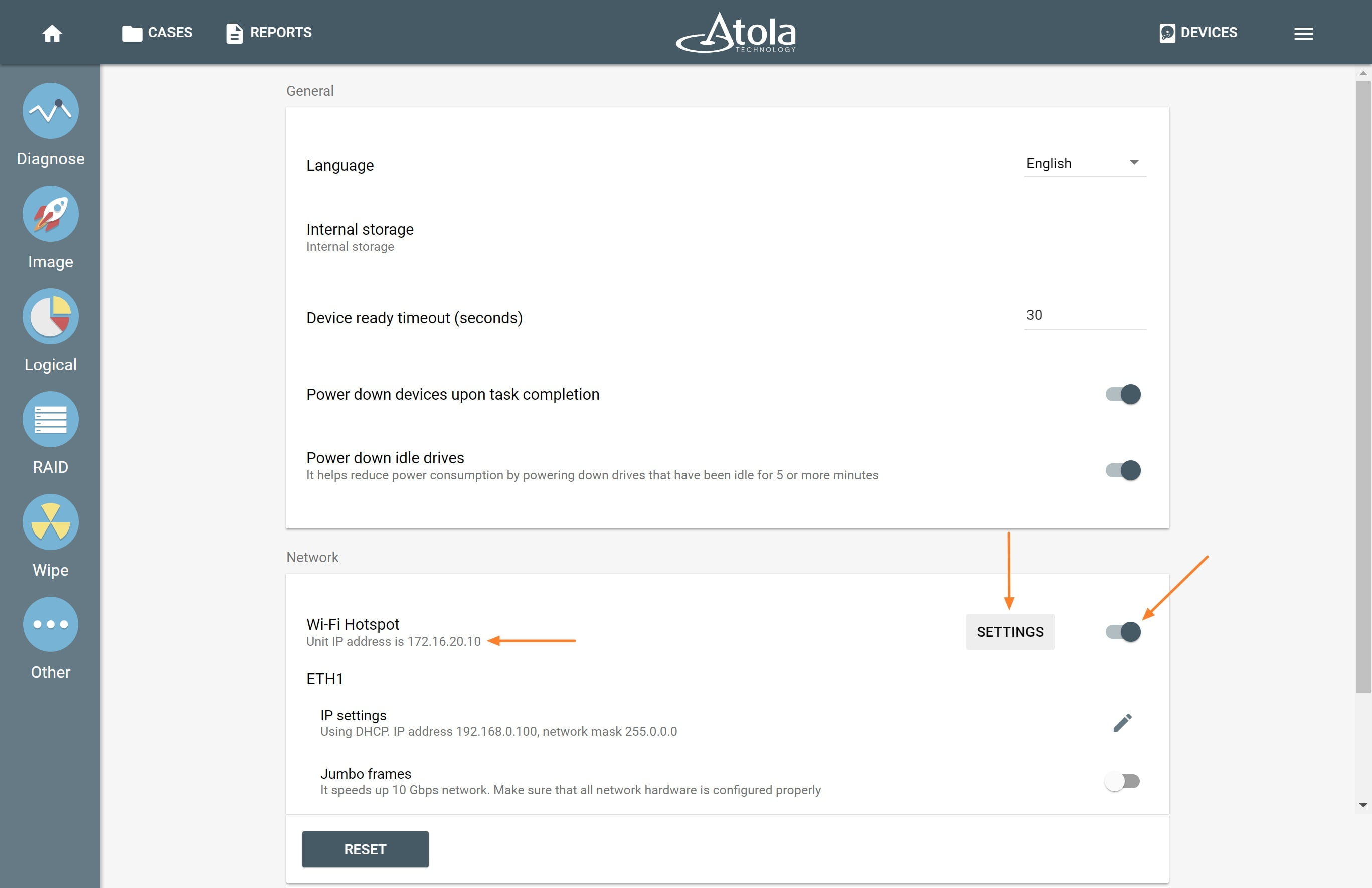
Enable Wi-Fi Hotspot
- Enable Wi-Fi Hotspot.
- Set SSID and Password. To make the network invisible to other devices, select Hidden mode. Click Save.
- Use these details to connect to the Hotspot from another device.
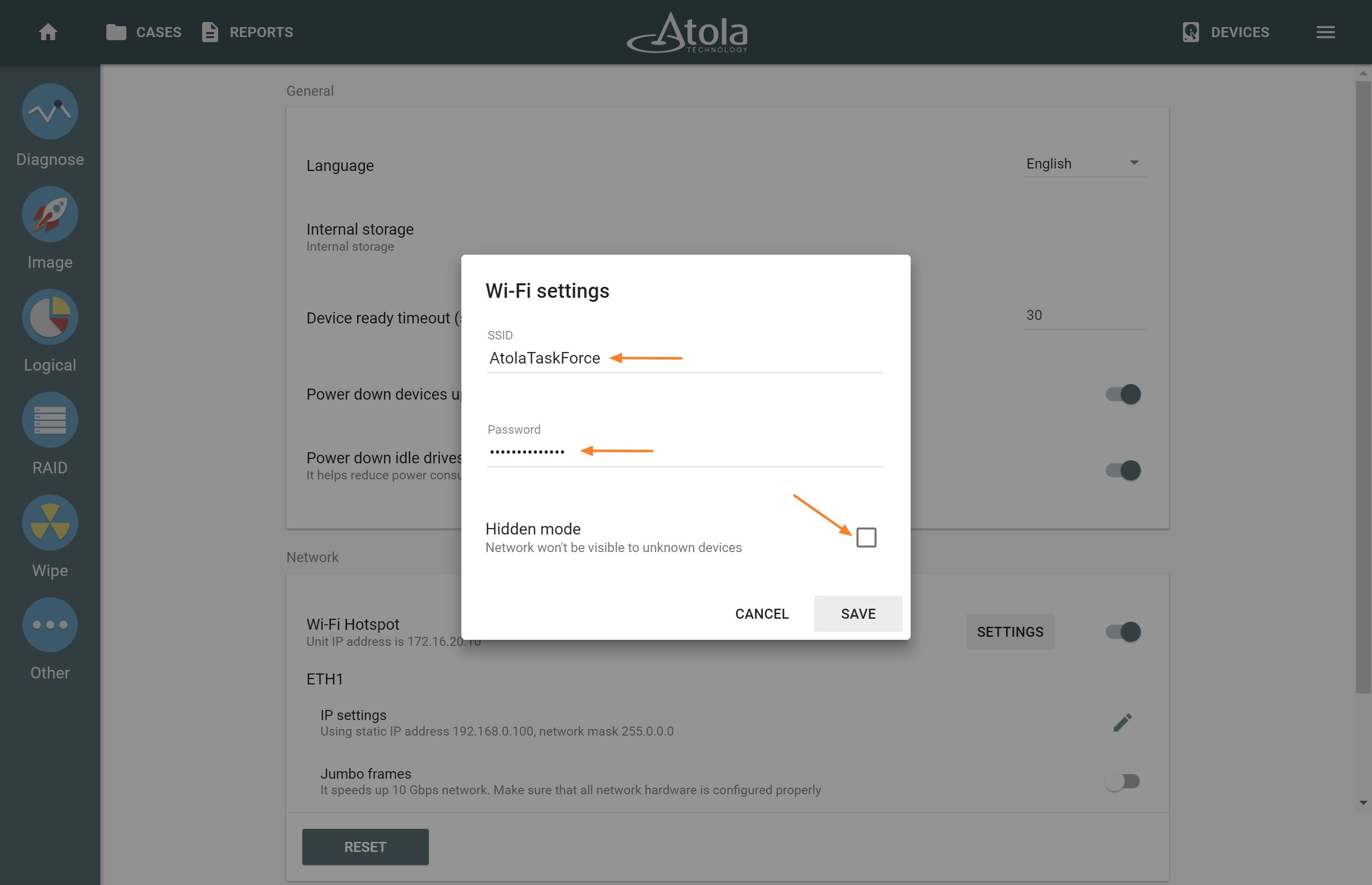
Adjust Wi-Fi settings
- To open the TaskForce interface, enter the unit’s IP address (indicated on the unit’s IP screen as well as under the Wi-Fi Hotspot category in the Settings window, see Step 4) in the Chrome browser of the device connected to the Hotspot.